.png?width=350&height=103&name=LOGO%20white%20full%20(1).png)
SMTP mailboxes
We integrate with all tools that allow connection only via IMAP and SMTP details of mailboxes.
Simply click “export all to csv” on top-right of your maildoso dashboard in the Email-Accounts page. Click the format and you can connect to any tool via IMAP/SMTP method,
If your tool is not listed, select the format “other” and you can change the column names to your tool’s need or sample csv.
If your tool does not support bulk upload of csv, you need to manually enter IMAP and SMTP details in your tool.
-
To connect your accounts to instantly.ai, follow these steps:
- Navigate to the "Email accounts" section.
- Click the "+ Add new" blue button in the top right corner.
- Choose the "IMAP / SMTP" option.
- Select "Bulk import from CSV."
- Drag and drop the CSV file downloaded from your maildoso account.
- Finally, scroll down and confirm.
-
To connect your accounts to Smartlead.ai, follow these steps:
- Navigate to the "Email Accounts" section.
- Click the violet "Add Account(s)" button in the top right corner.
- Drag & Drop or upload the CSV file downloaded from your maildoso account.
- Finally, scroll down and click "Upload."
-
supersend
To connect your accounts to supersend, follow these steps:
- Navigate to the "Email Accounts" section.
- Click the violet "Upload CSV or Excel Sheet" button in the top right corner.
- Upload the file or drag and drop it.
-
manyreach
To connect your accounts to manyreach, follow these steps:
- Navigate to the "Email Accounts" section.
- Click the blue "Add sender" button at the bottom of the page.
- Choose the last option "Add Senders In Bulk From CSV" button at the bottom of the page.
- Click the blue "Import Senders CSV."
-
nureply
To connect your accounts to nureply, follow these steps:
- Navigate to the "Accounts" section.
- Click "Connect New Account."
- Upload CSV File for Importing Accounts.
-
lemlist
When adding mailboxes one-by-one on Lemlist using details of the csv file. Make sure to set SSL enabled on IMAP and disabled on SMTP.
Google Workspace mailboxes
1. Connecting Sequencers
To connect your mailboxes to a sequencer, you first need to link the sequencer to Maildoso.
Click on the profile icon in the upper right corner and go to the settings page (https://app.maildoso.com/settings/general), then click on "Sequencer."
Alternatively, you can go directly to the page using this link: https://app.maildoso.com/settings/sequencers
In the window that opens, select your preferred sequencer, click "Configure," and fill in all the required fields.
2. Connecting Mailboxes
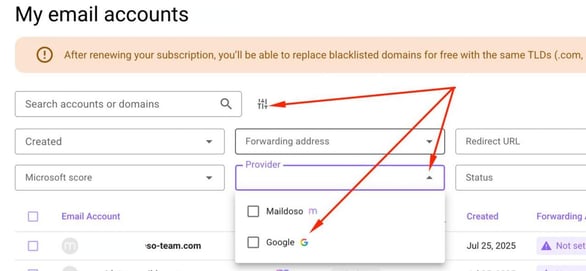
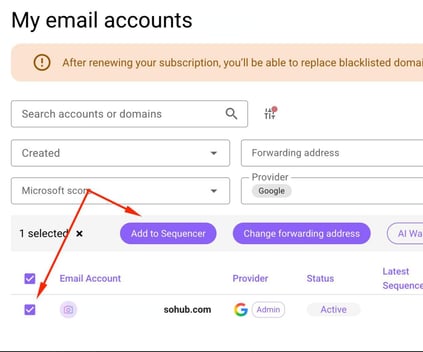
Next, go to the Email accounts section (https://app.maildoso.com/accounts), select your Google Workspace mailboxes (you can use the "Provider" filter), click "Add to sequencer," and then choose the desired tool.
Mailboxes will be connected within 2 hours (in some cases, provider-side delays can take up to 24 hours).